



How to Create Content
Last Updated: Sep 10, 2026
Turn moments into movements. Creating GIFs, Stickers, and Clips has never been easier. With Klipy.com, you can bring your ideas to life in seconds. Whether you are a seasoned editor or just starting, this guide will help you craft high-quality, shareable content that stands out in the feed.
Let’s dive in.
Best for: Reactions, looping memes, and emotion-led moments. GIFs are the language of the internet. The best GIFs are short, high-resolution, and feature a "seamless loop." Here is how to craft the perfect one: - Link: Paste links from YouTube, Vimeo, or any other media platform. - Creator Tip: For the best viral potential, keep your GIF short (under 6 seconds) and try to match the start and end frames so the loop feels infinite. Note: KLIPY usually supports a maximum of 20-second GIFs - Framing: If it’s a reaction GIF, crop tight on the face. If it’s an action, give it room to breathe. Create GIF Specs: - Supported Input: GIF, MP4, WebM - Max File Size: 15 MB Best for: News, soundbites, entertainment, and moments where audio matters. Clips are short videos (up to 20 seconds) with sound. Unlike GIFs, Clips capture the atmosphere of a scene. Go to Klipy.com/create and select "Create Clip." - Upload: Upload a video file directly. - Link: Paste links from YouTube, Vimeo, or any other media platform. Click on the edit icon in the top left corner of the content and trim your video. You have a 10-second maximum, so be choosy. - Creator Tip: Start the clip right as the action or dialogue begins. Don't leave "dead air" at the start. - Supported Input: MP4, MOV, WebM - Max File Size: 70 MB - Max Duration: 20 Seconds Best for: Reacting in chats, layering over stories, and adding personality. Stickers are essentially GIFs with a transparent background (alpha channel). They are the "digital cutouts" of the web. How to Create "Animated Stickers" Now: While our dedicated Sticker Maker is in progress, you can currently publish stickers by uploading animated images with transparent backgrounds. 2. Upload it via the "Create Sticker" tool. - Required Format: GIF or WebM with transparency. - Max File Size: 15 MB 2. Emotion is Key: The most shared content communicates a specific feeling (joy, sadness, surprise) instantly. 3. Keep it Light: While we support up to 15MB for GIFs, smaller files (under 5MB) load faster on mobile and are shared more often. 4. Right Tagging: One of the most important factors in making your content go viral is assigning the right tags. This directly determines how discoverable your content is in search. - KLIPY usually uploads your content immediately, but it isn't visible to others until our moderators review it. Our team works hard to review your content as soon as possible. Please note that processing times may vary and can take longer during periods of unusually high demand. - Daily Upload Limit: There is a limit of 20 uploads per user per day. - Some GIFs might be rejected from your profile. Please review our Community Guidelines.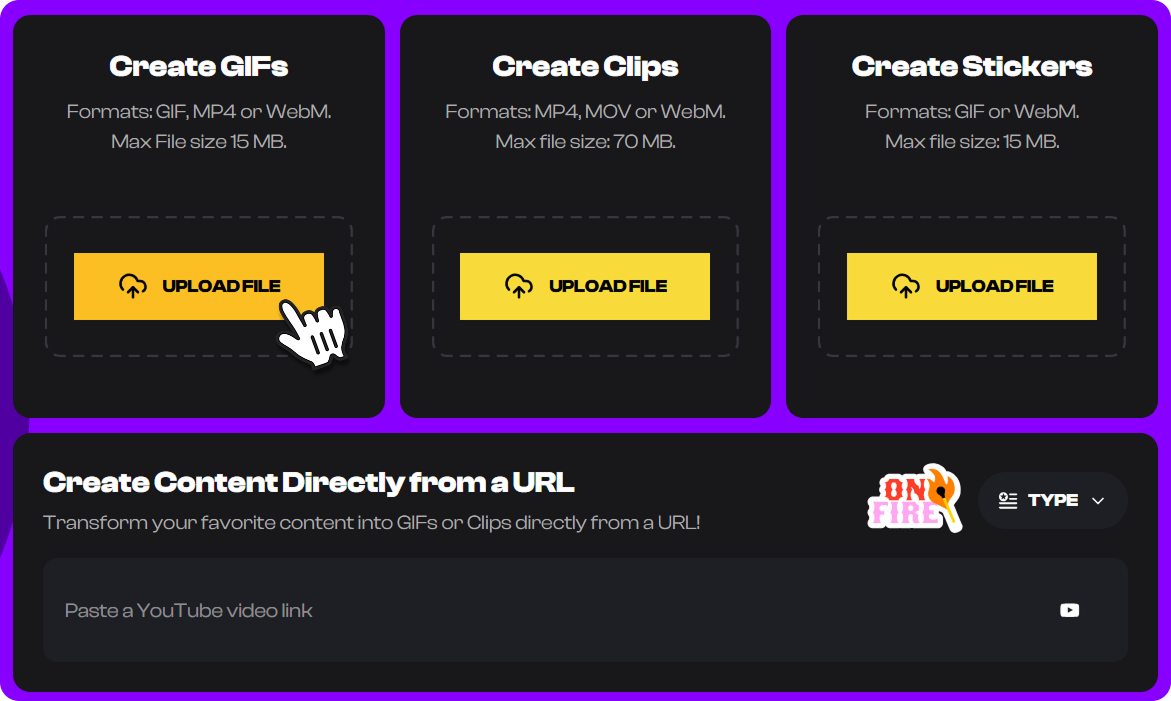
1. How to Create GIFs
Step 1: Start Creation
Visit Klipy.com/create and select "Create GIFs."
Step 2: Choose Your Source.
You have two options:
- Upload: Drag and drop a video or image from your device.
Step 3: Trim
Click on the edit icon in the top left corner of the content and select the exact moment you want to capture.
Step 4: Crop
Click on the Crop button in the bottom left corner of the page and see the cropping tool to focus on the action.
Step 5: Publish
Once you’re ready, click on “Next,” fill in the metadata and Hit "Publish" to add it to the library.
2. How to Create Clips
Step 1: Start Creation
Step 2: Select Source
Step 3: The 10-Second Hook
Step 4: Crop & Focus
Click on the “Crop” button and adjust the frame to ensure the subject is centered, especially if the clip will be viewed on mobile devices.Step 5: Publish
Once you finish, click on “Next”, fill in the metadata and click "Publish" to save new content in your library.
Create Clip Specs:
3. How to Create Stickers
Sticker Specs:
3 Golden Rules for Viral Content
From the KLIPY Content Desk
Important Notes: